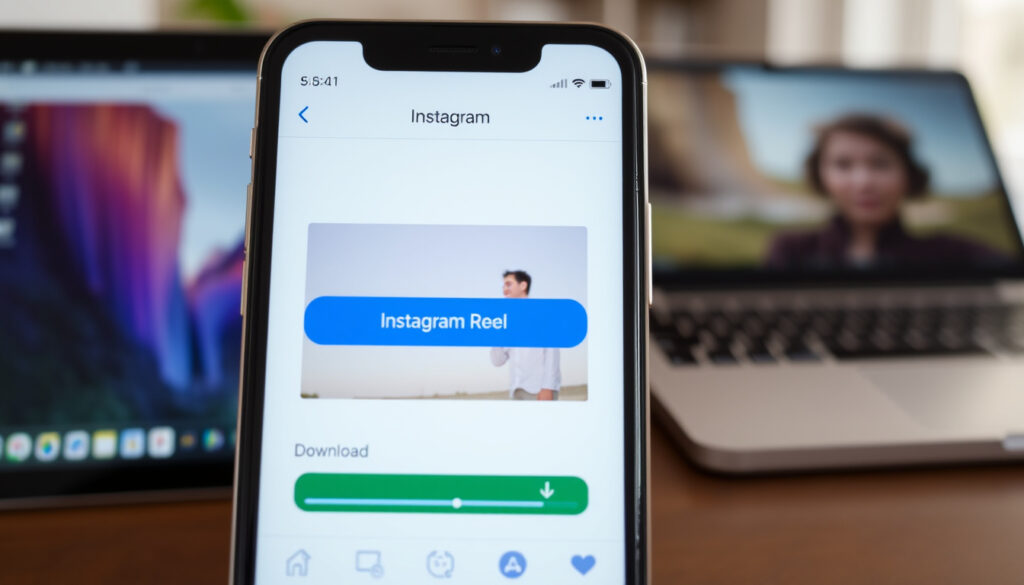
How to Download Instagram Videos: Save Reels on Any Device
You’ve seen it happen countless times: you’re scrolling through Instagram, a Reel catches your eye, and you think, “I need to keep this.” Then reality hits — there’s no download button, or the “Save” option is missing. According to Instagram’s own Help Center, the platform doesn’t offer a native way to save most public videos to your camera roll, leaving over 2 billion monthly active users scratching their heads. This guide cuts through the confusion, offering a legal, step-by-step walkthrough for downloading your own content, understanding a few legitimate workarounds, and fixing the common errors that stop the save button from working. No sketchy third-party apps, just clear answers for iPhone and Android users.
Why Instagram Won’t Let You Save Videos (And the Real Truth About Downloading)
Let’s be direct: Instagram does not provide a native download button for most videos. As Instagram Help Center states, the platform’s Terms of Use restrict the download of content without prior consent. When you save a video inside the app, you’re just bookmarking it—not downloading the actual media file to your device. This distinction is the root cause of most confusion and technical missteps.
This lack of a button is a deliberate strategy to keep users on the platform. But the practical consequence is that your camera roll remains empty, unless you know the specific—and legal—conditions under which downloading works.
- Downloading your own content is permitted.
- Downloading others’ content requires explicit permission.
- Fair Use is a complex defense, rarely applicable to casual saving.
- Always ask the original poster before downloading.
- Instagram’s Terms of Use prohibit unauthorized downloads.
- Violations can lead to account restrictions.
- Native “Download” icon exists only on your own content.
- Request your data via Instagram’s “Download your information” tool.
- Use screen recording as a private alternative for your own content.
- Third-party downloaders violate Instagram’s Terms of Service.
- They pose security and privacy risks.
- They often fail due to policy enforcement.
Before you search for a workaround, you need to understand the legal ground rules. Instagram’s Terms establish that the platform grants you a license to view content for personal, non-commercial use only. This means saving a video to your camera roll for private viewing is a gray area, but redistributing it is a clear violation. You are legally permitted to download your own content or use the platform’s authorized tools. For anything else, you need explicit permission from the original poster, unless the content falls under Fair Use—a complex legal defense that rarely applies to casual saving.
How to Download Instagram Videos Legally: A Step-by-Step Guide
Instagram provides a built-in way to download your own reels and photos—a feature you won’t find on other people’s content.
Downloading Your Own Content
- Open the Instagram app and navigate to your profile.
- Select the Reel or post you want to save.
- Tap the three-dot menu (⋯) in the top-right corner.
- Look for the “Download” option in the menu. Tap it, and the video will save to your camera roll.
This native “Download” control is your only guaranteed-legal method within the app. Instagram does not provide a universally available native download button for all videos, as confirmed by discussions on the Apple Support forums. While you can access your own content through the browser, downloading others’ videos typically requires browser-based tools—which are often blocked by Instagram’s Help Center because they circumvent the Terms of Service.
Troubleshooting: Why Instagram Reels Are Not Saving to Camera Roll
If you are the creator and the download fails, you’re not alone. Here are the most common culprits and how to fix them:
- Permission: Your phone’s settings may be blocking Instagram from accessing your storage. On Android, check Settings > Apps > Instagram > Permissions and enable Storage. On iPhone, go to Settings > Privacy > Photos and select “All Photos” for Instagram. As MultCloud notes, Reels may fail to appear in your camera roll due to permission issues with your device.
- Format: Instagram saves Reels in high-efficiency MP4 format, which some older devices may not support. If your device can’t play the file, try updating your phone’s software or using a different player.
- Policy: Instagram occasionally blocks downloads from accounts that have copyright strikes or from content that has been reported. If you believe this is the case, review your account’s status in Instagram’s app.
According to Wondershare Filmora, some browser-based downloaders require permission from the user or the platform to work correctly. This is because Instagram actively blocks third-party tools that attempt to scrape content without authorization.
Are Third-Party Download Tools Safe or Legal?
The short answer: they work for public content, but they are a security and legal minefield. There is no official API endpoint for downloading videos, according to Instagram Terms, making these services unofficial and potentially risky. Many of these tools require your login credentials, which can compromise your account. Always use an official source: Instagram’s native download feature for your own content, or direct permission for someone else’s.
| Method | Legality | Reliability |
|---|---|---|
| Instagram native download (own content) | Legal | High |
| Screen recording (own content) | Legal | High |
| Third-party apps/websites | Violates Terms | Low (often blocked) |
| Instagram data download request | Legal | High |
The native “Download” button appears only on user’s own posts. This is a common confusion point. Notice the pattern: the platform’s architecture and legal framework are designed to *prevent* unauthorized downloads, not to enable them.
itechguides.com, snapgram.io, setapp.com, sarafhawkins.com, nerdbot.com, copyrightlaws.com, socialchamp.com, republicworld.com, instadl.in
Frequently Asked Questions
Is there a legal way to download Instagram videos without violating terms?
Yes—the only 100% legal way is to download your own content using Instagram’s native “Download” button. For other users’ content, you must ask for permission. Instagram’s data download tool is another lawful option for getting your own data.
Why is Instagram not letting me save videos to my camera roll?
If you’re trying to save your own video and it fails, check your phone’s settings. Ensure Instagram has access to your photos. On iPhone, enable “All Photos” in Settings > Privacy > Photos. On Android, verify that the app has Storage permission. Also, try closing and reopening the app, as a simple restart can fix a glitch.
Why are my videos not saving to camera roll?
Instagram may not download a Reel if the app is force-quit or offline. Wait a few minutes, or turn off “Optimize iPhone Storage” in iCloud settings. If you have storage space issues, free up your device, as a full camera roll can prevent downloads from completing.
Can I save other people’s Instagram videos with a screen recording?
While screen recording is technically possible, distributing that video without the creator’s permission violates Instagram’s Terms. It might be acceptable for personal, private archival use, but you cannot repost or share it online. This method bypasses Instagram’s download controls but does not grant you legal rights to the content.
How do I download my own Instagram video to my phone?
Open your Reel, tap the three-dot menu, and select “Download.” If the option is missing, try the data download method instead. Go to your profile > Settings > Account > Download your information. This generates a file with all of your content, including videos, that you can save to your device.
No. Third-party downloader services are not authorized by Instagram and violate their Terms of Service. Using them can result in account penalties. Play it safe with the official methods described above.
More related posts
 916 Gold Price Today Singapore: SGD 85.00 per Gram
 How Many Opposition MPs in Parliament? 2024 UK Breakdown
 Royal Caribbean Cruise Singapore: Prices, Ships & Booking 2026
 Battle Through the Heavens: Watch Guide & Streaming
 How to Save Money: 5 Simple Rules and Strategies
 Tottenham vs Man City Lineups: Predicted Starting XIs
 67 Pall Mall Singapore: Membership, Cost & Ownership Guide
 DBS Multi-Currency Card Fees vs YouTrip vs Wise
