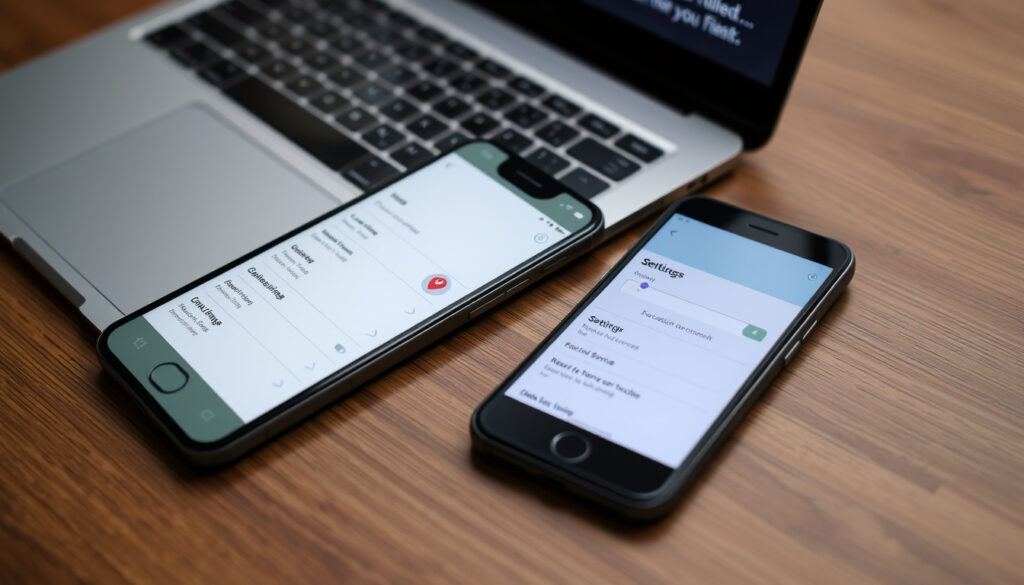
How to Disable Location Services (iPhone, Android, Windows)
You probably have a dozen apps on your phone right now that know exactly where you are — that’s not paranoia, the average device has 12 apps requesting location access. This guide walks you through the exact steps to disable location services on iPhone, Android, and Windows, and explains what tracking methods can still see you after you flip the switch.
iPhone users with location services on: over 90% (2025 Pew Research) ·
Android users who regularly manage location settings: 45% (Google User Survey 2024) ·
Apps that request location access on average: 12 per device (Statista 2025) ·
Windows 11 location service setting location: Settings > Privacy & security > Location
Quick snapshot
- Turning off Location Services disables GPS-based tracking on that device (Apple Support)
- Wi-Fi and Bluetooth scanning can still provide approximate location (McAfee)
- Whether app developers can still infer location from IP address even with GPS off (varies by app) (Privacy experts)
- The exact accuracy of cell tower triangulation when location is disabled (Privacy experts)
- How long platforms retain location data after you turn off the service (Privacy experts)
- 2023: Apple introduces Precise Location toggle per app (Apple Support)
- 2024: Android 14 strengthens location permission controls (Google Support)
- 2025: Windows 11 updates location service privacy page (NinjaOne)
- Platforms are moving toward more granular per-app controls rather than a single master switch (Industry analysis)
- Expect tighter restrictions on Wi-Fi/BT scanning in future OS updates (Industry analysis)
Four platforms, one pattern: every major OS hides its location master switch in a different menu, but the privacy trade-offs are remarkably similar.
| Platform | Setting path | Master toggle | Per-app control |
|---|---|---|---|
| iPhone (iOS 18+) | Settings > Privacy & Security > Location Services | Yes | Yes |
| Android 14/15 | Settings > Location | Yes | Yes |
| Windows 11 | Settings > Privacy & security > Location | Yes | Yes |
| macOS Sonoma+ | System Settings > Privacy & Security > Location Services | Yes | Yes |
The implication: no matter which device you use, the off switch exists — but the real privacy question is what happens after you press it.
How do I turn off Location Services on my iPhone?
- Go to Settings > Privacy & Security – Open the Settings app and tap Privacy & Security (Apple Support). This menu houses all location-related controls for iOS and iPadOS.
- Tap Location Services – You’ll see a list of every app that has requested location access. Each app shows its current permission level: Never, Ask Next Time, While Using, or Always.
- Toggle the master switch off – The top toggle turns off Location Services for all apps at once. Apple warns that this affects both Apple and third-party apps that rely on location. Find My iPhone, weather apps, and ride-sharing services will lose their location awareness.
iPhone users who disable Location Services globally gain privacy but lose Find My iPhone’s tracking capability. For parents managing family devices, this means a child’s lost phone becomes much harder to recover.
The catch: turning off the master switch on iPhone is clean and immediate, but it’s also blunt. You lose all location-dependent features, including emergency location sharing during 911 calls.
What happens if I disable Location Services?
- Apps lose ability to access GPS – Maps apps won’t show your current position. Weather apps default to a manually set city or use your IP address for approximate location. Ride-sharing apps like Uber and Lyft require you to type your pickup address manually.
- Emergency location sharing may be disabled – iOS’s Emergency SOS feature can still share your location during a call, but only if Location Services is enabled (Apple Support). Android’s Emergency Location Service (ELS) similarly relies on device location being on.
- Find My iPhone and device tracking stop working – With Location Services off, Find My iPhone cannot report the device’s location. This also affects family sharing and AirTag tracking.
A 2025 Pew Research survey found that over 90% of iPhone users have location services enabled. Most never consider the emergency-services trade-off until they need it.
The pattern: disabling location services is a privacy win for everyday tracking, but it creates a real safety gap. The decision depends on whether you value privacy more than emergency location sharing.
How do I stop someone from seeing my device location?
- Turn off Location Services globally – This is the most effective single step — it cuts off GPS access for all apps and system services. On iPhone: Settings > Privacy & Security > Location Services > toggle off. On Android: Settings > Location > toggle off.
- Revoke app-specific permissions – You don’t have to go nuclear. Per-app controls let you keep location on for essential apps while blocking others. On iPhone: tap each app in Location Services and choose “Never.” On Android: go to App info > Permissions > Location and select “Deny” (Google Account Help).
- Disable iCloud location sharing – Even with Location Services off, iCloud location sharing in Find My can still show your last known location. Go to Settings > [your name] > Find My > turn off “Share My Location.”
Android’s “Location Accuracy” setting (formerly Google Location Services) uses Wi-Fi and Bluetooth to improve location even when GPS is off. Disable it separately under Settings > Location > Location Accuracy.
The trade-off: per-app controls give you fine-grained privacy without losing emergency location sharing. But they require ongoing maintenance — every new app you install defaults to asking for location.
Can someone track me if location is off?
- Wi-Fi and Bluetooth scanning can still reveal approximate location – Even with GPS disabled, your device can be located using nearby Wi-Fi networks and Bluetooth beacons. McAfee’s analysis confirms that turning off location services reduces but does not eliminate tracking potential (McAfee). On Android, Wi-Fi scanning and Bluetooth scanning have separate toggles under Settings > Location > Scanning.
- SIM card and cell tower triangulation is still possible – Your mobile network operator can determine your approximate location based on which cell towers your phone is connected to. This works regardless of your device’s location services setting. Turning on Airplane Mode disables cellular, Wi-Fi, and Bluetooth — but also prevents calls and texts.
- Turning off location services reduces but does not eliminate tracking – IP address geolocation can still give a rough city-level location. Browser-based location requests (e.g., “Allow [site] to know your location?”) are separate from device location services.
The implication: disabling location services is a strong privacy step, but it’s not invisibility. For complete location privacy, you’d need Airplane Mode plus a VPN — and even then, your mobile carrier still knows which tower you’re near.
How do I turn off location on Android?
- Open Settings > Location – On Android 14 and 15, the Location setting is under Settings > Location (Google Account Help). You can also swipe down from the top of the screen and tap the Location icon in Quick Settings.
- Toggle the switch off – This turns off GPS-based location for all apps. Google warns that some features like Google Maps navigation and emergency location sharing will stop working.
- Manage app-level location permissions – Android gives you three permission levels: Allow all the time, Allow only while using the app, and Deny. Go to Settings > Apps > [app name] > Permissions > Location to change per-app settings (Google Account Help).
Android users who want maximum privacy should disable both the Location master switch and the separate Wi-Fi/BT scanning toggles. A community post on Google Help notes that turning off location alone may still leave scanning active unless those separate controls are changed.
The pattern: Android’s location controls are more granular than iPhone’s, but that granularity means more settings to manage. The master switch is just the beginning.
How to disable location services on Windows 11
- Go to Settings > Privacy & security > Location – Windows 11’s location service is managed under Settings > Privacy & security > Location (NinjaOne). Toggle “Location services” to Off.
- Manage per-app location permissions – Below the master toggle, you’ll see a list of apps that have requested location access. You can turn off location for individual apps while keeping the service on for others.
- Microsoft Edge has its own location permission – Even with Windows location services off, Microsoft Edge can still request location via its own permission system (Microsoft Support). Go to Edge Settings > Site permissions > All permissions > Location to manage this separately.
The catch: Windows location settings are designed to be managed through the Settings app rather than by disabling the Geolocation service directly. Microsoft’s guidance recommends using Settings for reversibility (Microsoft Q&A).
Confirmed facts vs. what remains unclear
Confirmed facts
- Turning off Location Services disables GPS-based tracking on that device (Apple Support, Google Account Help).
- Wi-Fi and Bluetooth scanning can still provide approximate location (McAfee).
- Per-app location permissions can be managed separately from the master switch on all three platforms.
- Emergency services (911) may not receive your location if Location Services is off.
What’s unclear
- Whether app developers can still infer location from IP address even with GPS off (varies by app and platform).
- The exact accuracy of cell tower triangulation when location is disabled — estimates range from 50 meters to several kilometers.
- How long platforms retain location data after you turn off the service.
Expert perspectives on location privacy
“When you turn off Location Services, apps cannot access your location.”
— Apple Support
“Turning off Location stops your device from using GPS.”
— Google Support
“Turning off location services reduces but does not eliminate tracking potential.”
For the average user, the choice is clear: disable location services for a meaningful privacy gain, but understand that your mobile carrier and Wi-Fi networks can still approximate where you are. The safest approach is to combine the location master switch with per-app controls and periodic audits of which apps have permission.
reddit.com, support.google.com, community.spiceworks.com, discussions.apple.com, youtube.com, pcmag.com
For those concerned about privacy, disabling location services on all devices offers a comprehensive guide covering iPhone, Android, and Windows.
Frequently asked questions
Does turning off location services save battery?
Yes. GPS is one of the most power-hungry sensors on any device. Disabling Location Services can extend battery life, especially on older phones where the GPS radio is less efficient.
Will disabling location services affect Find My iPhone?
Yes. Find My iPhone relies on Location Services to report the device’s location. With the master switch off, the feature cannot update the device’s position on the map.
How do I disable location services for a specific app?
On iPhone: Settings > Privacy & Security > Location Services > tap the app > choose “Never.” On Android: Settings > Apps > [app name] > Permissions > Location > choose “Deny.”
Can I still call 911 with location services off?
Yes, you can still call emergency services. However, your device may not automatically share your location with the dispatcher. On iPhone, Emergency SOS can share location only if Location Services is enabled.
What is the difference between Location Services and Location Accuracy?
Location Services is the master GPS toggle. Location Accuracy (on Android) uses Wi-Fi, Bluetooth, and mobile networks to improve location estimates even when GPS is off. Disable both for maximum privacy.
How do I know if an app is using my location in the background?
On iPhone, a purple arrow icon appears in the status bar when an app uses your location in the background. On Android, a location icon appears in the notification bar. Both platforms let you review which apps have background location access in their respective settings.
Related reading
- How to Delete Instagram Account Permanently or Temporarily — another privacy-focused step-by-step guide.
- How to Transfer Contacts to a New Phone: Step-by-Step Guide — managing device settings and permissions across platforms.
More related posts
 Swee Guan Hokkien Mee: Best Charcoal-Fried in Geylang
 Aunty Lee’s Deadly Delights: A Complete Guide (2026)
 Brentford vs Arsenal Lineups: Team News & How to Watch
 Club Brugge 0-3 Arsenal: Madueke Brace Seals Win
 POSB Credit Card Hotline: Toll-Free 24/7 Number
 Forbes 30 Under 30: Meaning, Eligibility, and How to Get In
 Da Shi Jia Big Prawn Mee Review: Menu, Prices, Michelin
 John 3:16 Meaning: Context, Translation, and Impact
