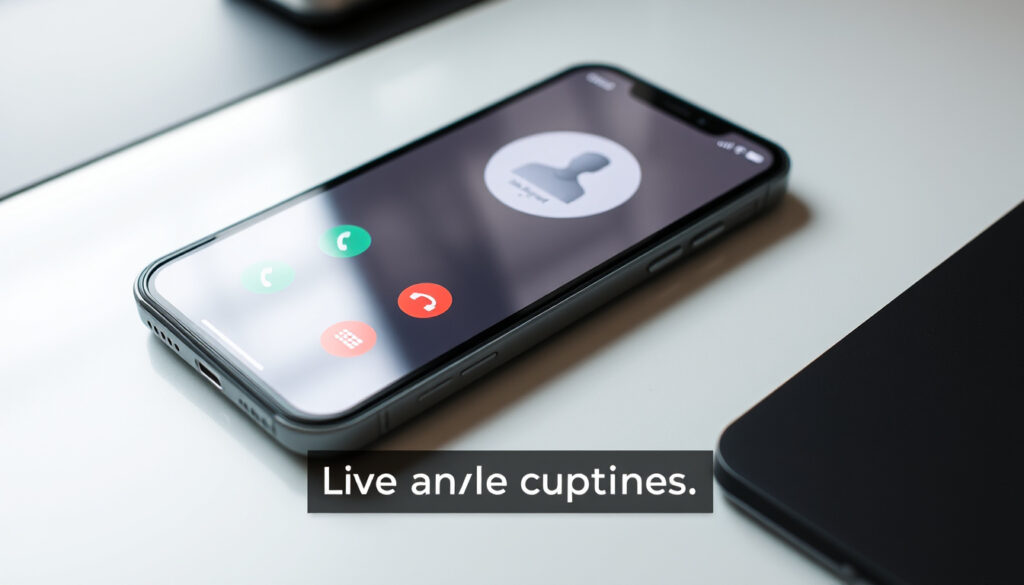
Samsung Z Fold7 Call Transcript: How to Enable Live Captions
You are probably here because you just unboxed a Galaxy Z Fold7, or you are weighing whether the new Fold deserves a spot in your pocket. You may have heard the rumors switching on the phone’s transcription powers, and maybe you are curious where to find them in the menus. This guide walks through Samsung’s native tools — including the hidden Live Captions settings, the Galaxy Z Fold7 call transcript options, and how to enable the transcription feature that works alongside your calls — so you can get the usefulness without wading through 20 confusing menus.
Foldable launched: Galaxy Z Fold7 (2025) · One UI: 8.0 · Live Captions: Free, built-in · Transcript Assist: Call recording transcriptions only
Key facts
- Location of feature: Phone app → Recorder → Transcript Assist.
- Free and built-in on One UI 8.
- Free Android accessibility feature, not Samsung-exclusive.
- Works on any audio, including calls when speaker is on.
- It works alongside live calls, showing text in real time.
- Carrier-dependent; available on some Z Fold7 variants.
- Video transcription is not native on Samsung.
- Live Transcribe (Google) works on any audio, but no native call recording.
What the Galaxy Z Fold7 can actually do for transcription
You have the native call recording with automatic transcription (Transcript Assist), and you have the system-wide Live Captions that works on any audio.
The key detail: transcriptions from calls live inside the Phone app under Recorder, not inside a notes app. According to AT&T’s device support article for the Galaxy Z Fold7, you can access recording and transcription features in the Phone app settings. It sits alongside Live Captions, and it offers a separate toggle for switching captions on for every call. The same guide lists a Transcribe shortcut option inside the Live Caption settings menu, so you can start a transcription with a single tap — handy for meetings or lectures.
One caveat: the Fold7’s native recorder does not transcribe video. Samsung’s support pages clarify that video transcription is not a native feature, so you have to look elsewhere for that specific use case.
Where to find the transcription settings
- Depending on your carrier, you may see Call Captions in the Phone app settings.
- Open Phone app → tap More options (⋮) → Settings → Call captions.
- Live Captions is under Settings → Accessibility → Hearing enhancements → Live Captions.
- Works with any audio, including calls when the speaker is on.
On the Z Fold7, you may find the option in Phone settings but the recording feature might be disabled in your country.
How to use Transcript Assist for call recordings
If you have a recording saved (either from the Phone app or a voice recorder), you can generate a transcript with Transcript Assist.
- Open the Phone app → tap Recorder.
- Select a recording and tap Transcript Assist.
- It appears right below the recorded waveform, and you can tap any line to jump to that part of the audio.
Transcript Assist supports several languages, including English, Korean, and more (per Samsung’s support pages). The transcription is on-device, so it works without an internet connection, and it doesn’t upload your calls to the cloud.
How to enable Live Captions on a Galaxy Z Fold7
- Go to Settings → Accessibility → Hearing enhancements → Live Captions.
- Toggle Live Captions on.
- While here, you can also enable Type responses during calls – a feature that uses your voice to reply to calls when captions are on.
The shortcut is a nice touch for the Z Fold7’s cover screen — you can activate captions from the lock screen without digging into menus. According to Google’s accessibility documentation, the feature works across apps, so you get captions in YouTube, Spotify, and even third-party video players.
How to turn on Call Captions on Samsung Galaxy Z Fold7
Call Captions is a separate feature from Live Captions, and it’s available on some carriers. On AT&T, for example, you may see it in the Phone app settings.
- Open the Phone app → More options (⋮) → Settings → Call captions.
- You can also choose to Show captions during calls or Only for incoming calls, depending on your preference.
If you don’t see “Call captions” in your settings, you are on a device that uses Live Captions instead — so head to Accessibility settings.
How to use Live Transcribe on Galaxy Z Fold7
- Download Live Transcribe from the Google Play Store (free).
- Open the app and grant microphone access.
- Place a call and turn on speakerphone — the app will transcribe in real time.
- Use the settings in the top right to change language, text size, and choose whether to keep the screen on.
What about the Samsung Galaxy Z Fold7 special features?
For transcription, the Fold7’s larger inner screen is a huge advantage — you can see the Live Captions text without squinting, and you can even run the Phone app next to a notes app in split screen while you transcribe manually.
One UI 8 brings a refreshed settings layout, so if you are coming from an older Fold, take a few minutes to re-learn the Accessibility menu — the options are still there, just in slightly different places.
Related reading: Samsung Galaxy Watch Ultra2: Price, Specs & Worth
samsung.com, att.com, androidauthority.com, att.com, makeuseof.com, androidpolice.com, manuals.plus, att.com, lsreg.att.com, att.com, yahoo.com
Frequently asked questions
What languages does Samsung Transcript Assist support?
Transcript Assist supports the languages available for call recording transcription, which includes English, Korean, and several others depending on your region and One UI version.
Is Galaxy Z Fold7 call recording automatic?
No. You need to manually enable call recording in the Phone app settings on One UI 8. It is not on by default.
Does the Z Fold7 have a native call caption feature?
Yes, but it is carrier-dependent. AT&T’s user guide for the Z Fold7 shows a “Call captions” toggle in the Phone app settings.
Can Live Captions transcribe videos on a Galaxy Z Fold7?
Live Captions also works on video playback, but it does not generate a transcript — it only shows captions in real time.
How do I turn on live transcription in the Phone app?
Open Phone → Settings → Call captions (if available). If not, use Live Captions in Accessibility settings.
Does Live Caption work on the Z Fold7’s cover screen?
Yes, Live Caption can show captions on the cover screen when the phone is closed.
Whether you rely on Live Captions for silent reading, Call Captions for clearer phone conversations, or Transcript Assist to revisit important calls, the Fold7 handles it all on-device and privately.
Next time you are in a meeting or catching up on a podcast, remember the Fold7 can keep up — you just have to know where to look.
More related posts
 Pet Store Near Me – Northern NJ Locations Open Now
 Olivia Dean ‘So Easy (To Fall In Love)’ Lyrics & Meaning
 Woman of the Hour True Story: Fact vs. Fiction
 Situs Slot MITOSBET88: What You Need to Know Before Playing
 Singapore Airlines Cabin Crew Salary 2025: Pay Breakdown
 Tata Gold ETF Share Price: Current Price, NAV & Analysis
 General Tso Chicken Near Me: Find Open Spots & History
 Lai Wah Restaurant Menu: Prices, Signature Dishes & Set Menus
